

Managed VPS: server, SSH and controls
What the Managed VPS plan includes, how to get SSH access and where support ends, what the Stop, Start and Recreate buttons do and what is lost.
Managed VPS is a separate virtual machine just for you: not a shared cluster as in Cloud, but your own CPU, memory, disk and database. Inside is the same Rivo you would install on your own server, while the server, updates and backups are looked after by us. Plans are compared in Plans and payment.
What is included
- A dedicated VM with Rivo at an address like
name.me.rivo.daywith HTTPS. - The license is issued and connected automatically — no key to enter.
- Rivo updates, automatic system security updates and daily backups are on our side, see Managed VPS: backups and restore.
- SSH access with your key — if you want to log in and see what is going on on the server.
- The same modules as in the other plans.
Server setup
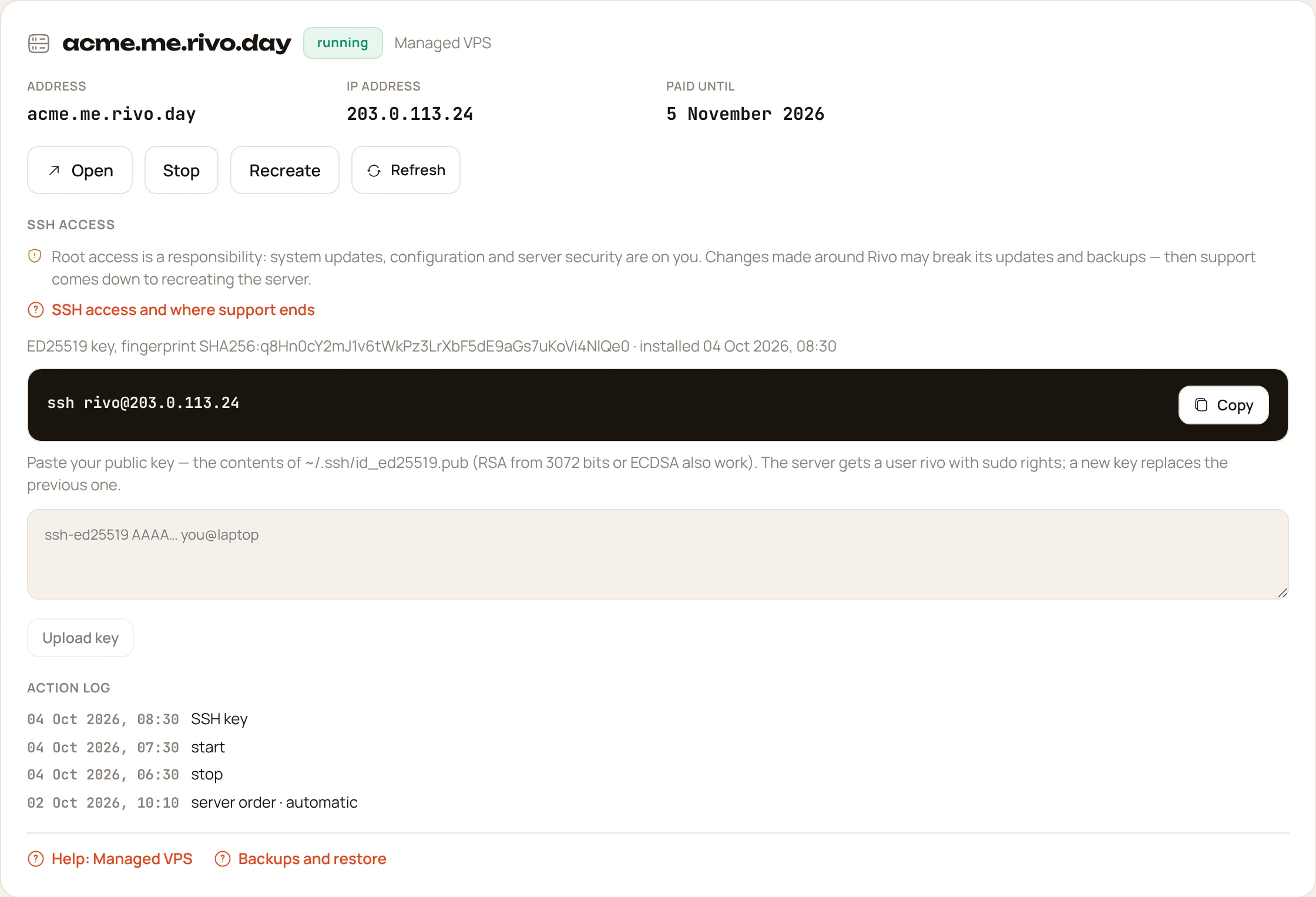
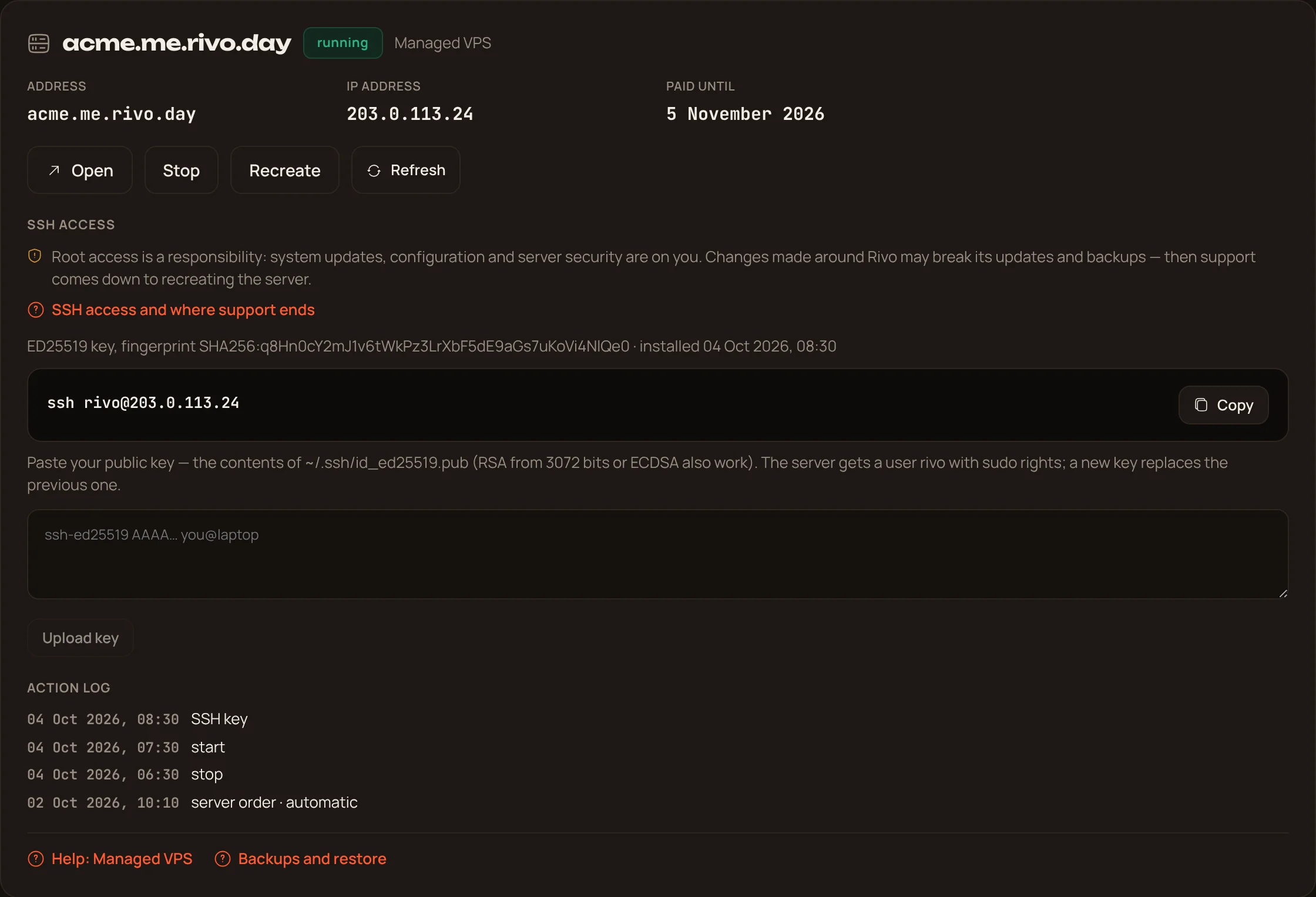
The server is created automatically after payment — usually in 10–20 minutes. In the cabinet, under “My instances”, there is a server card: setup steps, address, IP address, paid-until date and the action log. You can close the page — the state updates by itself.
If setup stopped with an error, the card says at which step and shows a “Retry” button — a retry continues from the same point. If it does not help, write to [email protected].
If the payment went through but there is no order, the card has a “Create server” button.
SSH access
- Generate a key if you do not have one yet:
ssh-keygen -t ed25519. - In the server card, in the “SSH access” block, paste your public key — the contents of
~/.ssh/id_ed25519.pub— and press “Upload key”. - Log in with the command from the card:
ssh rivo@<IP address>.
- ed25519, RSA from 3072 bits and ECDSA keys are accepted. Passwords are not used.
- The server has a user
rivowithsudorights; log in over SSH as that user, not as root. - A new key replaces the previous one: lost the key or changed laptops — just upload a new one.
- A key can be uploaded only while the server is running.
- The cabinet will neither accept nor send a private key (without
.pub): it must never be shared, including with us. If it has already been copied somewhere, better generate a new pair. - Every key upload goes to the action log; we store only the key fingerprint.
Where support ends
Root via sudo is a responsibility: whatever you change in the system yourself — its configuration, packages, updates beyond the automatic ones and security after your changes — is on you.
- We are responsible for what we installed: Rivo, its updates, backups and the server working as long as it was not changed by hand.
- We do not fix breakage after manual changes over SSH: edited Rivo files and containers, Docker and network configuration, removed or replaced packages. Changes made around Rivo may break its updates and backups — then help comes down to recreating the server.
- Reading logs (
sudo rivo status,sudo rivo logs api), taking a backup (sudo rivo backup) and downloading it is fine and encouraged — it breaks nothing. The commands are in Updates, backup and restore.
Stop and start
- “Stop” turns the server off: Rivo is unavailable until you start it. The data on the disk stays, backups are kept.
- “Start” turns the server on again — Rivo comes up by itself.
Stopping does not pause billing: the server remains yours. Starting the server, retrying setup or uploading a key works until the payment lapses (including the grace days after the period ends); recreating needs an active plan; stopping — always.
Recreate
“Recreate” deletes the virtual machine and creates a new one from scratch. It is a last resort — for a server broken so badly that installing it again is simpler.
Everything on the machine is deleted with it: transactions, documents, the password vault, settings, the uploaded SSH key and local backups. Assume this data cannot be recovered.
Before recreating:
- Build an archive of your data: in Rivo Settings → Account and data → “Build archive” — and keep it yourself. More in Exporting all your data and deleting your account.
- If you need the server as it was rather than a new one, write to us: a restore from backup may be enough.
The cabinet asks twice: first it shows a warning, then asks you to tick “I understand”. The new server keeps the same address (the IP address may change) and gets a new license, connected automatically. Upload your SSH key again after recreating.
Action log
The server card has a log: who ordered, stopped, started, recreated the server or uploaded a key, when, and how it ended. Actions the server took by itself are marked “automatic”.