

Connect your iPhone with a QR code
How to sign in to the Rivo iPhone app with a QR code from the web — without typing the address, password or PIN. How long the code lives and what to do if it does not work.
The shortest way onto your phone: the web is already open and you are signed in, so all the phone needs is a QR code. The app fills in the address of your Rivo and signs in as the same person, with no password or PIN to type.
How to connect
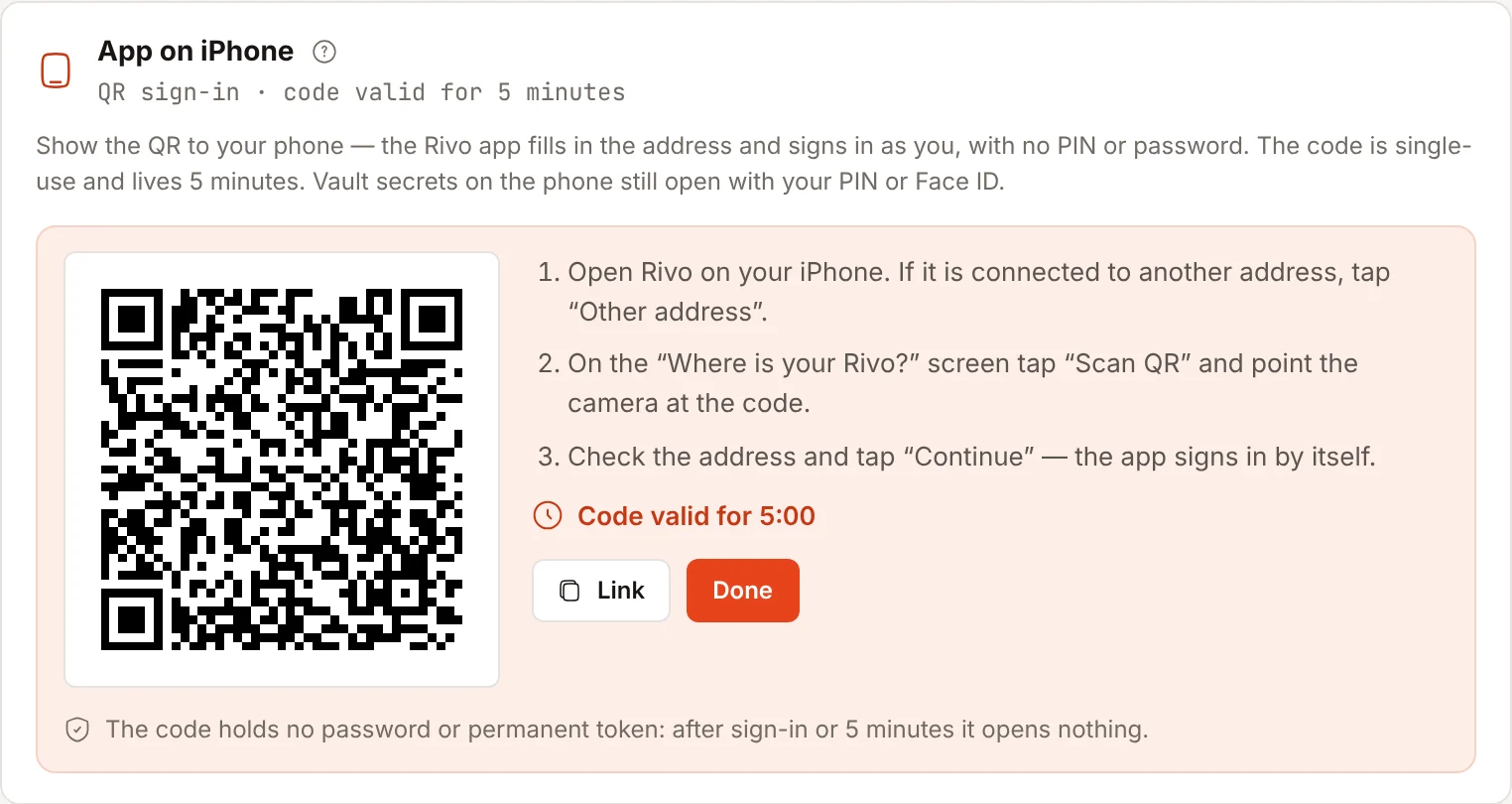
- In the web open Settings → Access → App on iPhone and press “Connect iPhone”. A QR code and a countdown appear on the screen.
- Open Rivo on your iPhone. If the app is already connected to another address, tap “Another address”.
- On the “Where is your Rivo?” screen tap “Scan QR” and point the camera at the code.
- The app shows the address from the code. Check that it is your Rivo and tap “Continue” — the app signs in by itself.
- In the web press “Done”: the QR disappears from the screen and the unused code stops working.
If the app is already connected to the right address and asks you to sign in, the sign-in screen has a “Sign in with QR” button — it does the same for the selected server.
How long the code lives
- The code is single-use and valid for 5 minutes. Expired — press “New code”.
- The QR holds no password and no permanent token: only the address of your Rivo and this code. After sign-in or 5 minutes it opens nothing.
- Leave the settings page with the code open and it is cancelled by itself, as with “Done”.
- The phone stays signed in no longer than the web sign-in that showed the QR: once that web session expires, the app asks you to sign in again.
- If sign-in is not enabled on your own installation (no PIN or password), there is no QR panel — the app connects by address alone.
- A new code can only be issued while you are signed in to the web. If Cloud is unpaid, issuing codes is closed until payment.
The password vault on the phone
QR sign-in opens the app, not the vault: secrets on the phone still open with your PIN or Face ID — exactly as after a password sign-in. More in iPhone app and widgets.
No camera, or it does not work
Next to the QR in the web there is a “Link” button — it copies the content of the code. Send the link to your phone any way you like and in the app tap “Scan QR” → “Paste from clipboard”.
If the app says it has no camera access, allow it: iOS Settings → Rivo → Camera.
The QR is read only by the camera inside the Rivo app — the iPhone’s system Camera will not recognise it.
If it did not work
| What you see | What to do |
|---|---|
| “The QR code did not match or has expired” | the code has expired, was already used or was cancelled with “Done”. Open a new one in the web |
| “This QR is from another server” | the app is connected to another address: tap “Another address” and scan again |
| “This is not a sign-in QR” | you scanned a different code. In the web open Settings → Access → “Connect iPhone” |
| “This is a Cloudflare Access code” | that QR is scanned with “Scan access code” on the address screen, not with “Scan QR” |
| You edited the address in the field by hand | the code was issued for another address and will not be sent — scan the QR again or sign in with your password |
Password, PIN and passkey sign-in work as before — QR only saves you the typing. Sign-in methods: Signing in: PIN, password, code and passkey.
Security
Show the QR only to your own phone. Whoever scans your code within 5 minutes signs in to your account, so press “Done” after connecting.
The other way round: someone else’s QR connects the phone to their account. That is why the app always shows the address from the code and waits for “Continue” — do not tap it if the address is unfamiliar.
Every issued code and every sign-in with it is written to the security journal (Settings → Security journal); a sign-in from a new address triggers a notification, just like a password sign-in.